
Key Takeaways:
- Microsoft Copilot streamlines work by embedding AI directly into everyday tools.
By working within Microsoft 365 apps, Copilot reduces manual effort and improves productivity without disrupting existing workflows. - Using Copilot effectively requires more than basic prompting.
Strategic application across emails, meetings, documents, data analysis, and collaboration unlocks its full value and delivers measurable efficiency gains. - Developing Copilot skills is becoming essential for future-ready professionals.
With the right training, individuals and teams can automate routine tasks, collaborate more effectively, and focus on higher-value work.
Streamlining Your Workflow With Microsoft Copilot
As organisations continue to navigate rapid digital transformation, one question keeps surfacing: How can we work smarter without adding more hours to the day?
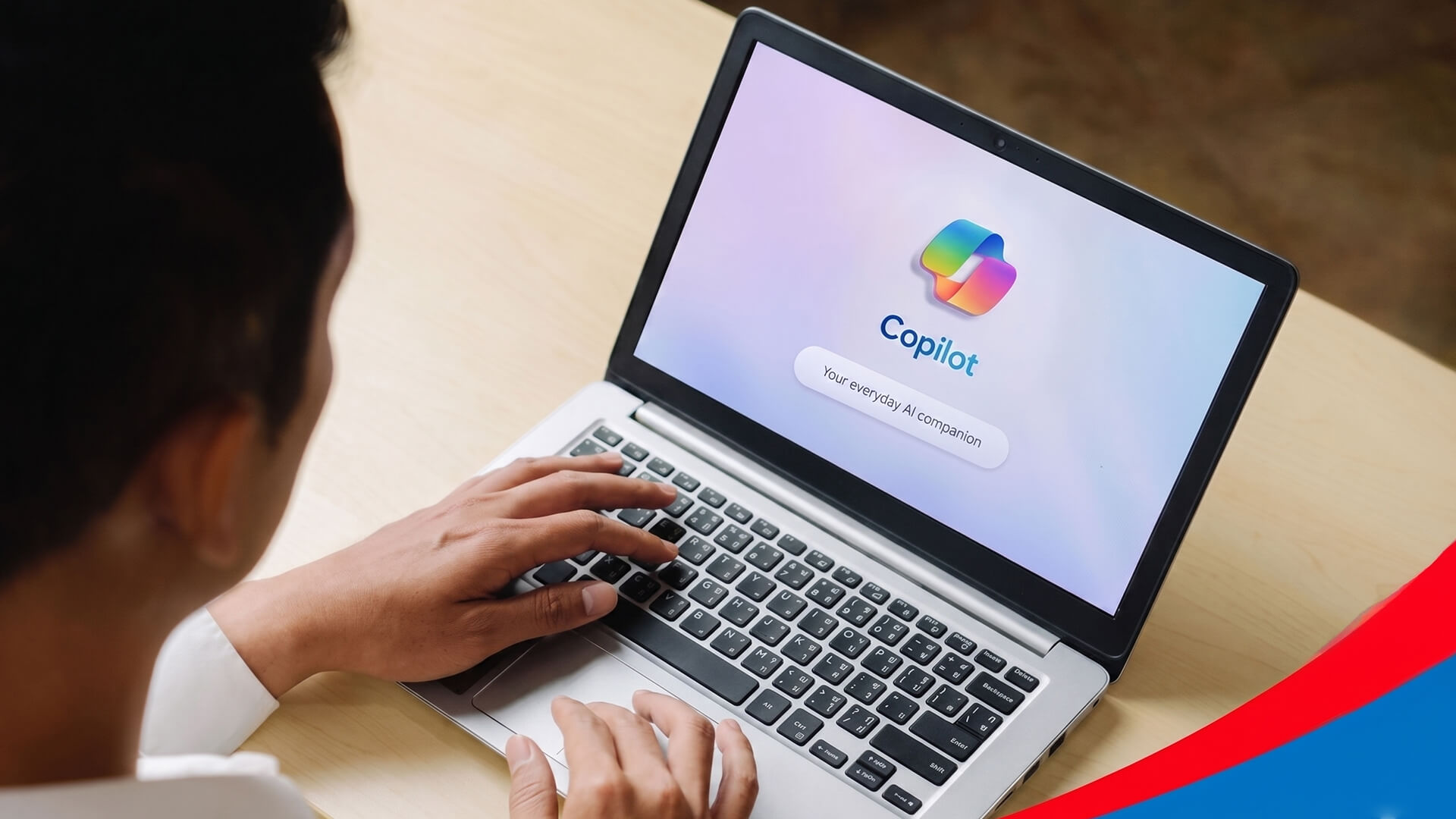
The answer lies in Microsoft Copilot.
Designed to integrate seamlessly into the Microsoft 365 tools you already use, Copilot is redefining how professionals manage tasks, collaborate with teams, and streamline workflows. When used correctly, it can significantly reduce time spent on menial tasks and free up time for higher-value work.
This article explores what Microsoft Copilot does, how it differs from other AI tools, and practical ways it can be used to streamline everyday work processes.
What Does Microsoft Copilot Do?
Microsoft Copilot is an AI-powered assistant embedded directly within Microsoft 365 applications such as Word, Excel, PowerPoint, Outlook, Teams, and SharePoint. Unlike standalone AI tools that operate separately from your daily work environment, Copilot enhances the tools you already rely on, allowing you to work more efficiently without switching platforms.
While tools like ChatGPT are excellent for brainstorming, content creation, and general problem-solving, Copilot is purpose-built for the workplace. It can access your emails, documents, spreadsheets, calendars, and Teams conversations securely, helping you generate content, analyse data, summarise information, and automate routine tasks within your existing workflows. To better understand just what makes Microsoft Copilot the superior tool, check out last month’s blog on Copilot and ChatGPT’s different use cases.
How Microsoft Copilot Streamlines Your Workflow
When used strategically, Copilot can transform the way you work. Here’s a step-by-step look at how it supports common workplace processes.
Step 1: Reduce Time Spent on Admin Tasks
Copilot can draft emails, summarise long email threads, and highlight key action items in seconds. Instead of spending time rewriting similar responses or chasing updates, professionals can focus on decision-making and relationship-building.
Step 2: Refining Meeting Minutes
After meetings, Copilot in Microsoft Teams can generate summaries, capture discussion points, and extract follow-up tasks. This ensures nothing is missed and reduces the need for manual note-taking or follow-up emails.
Step 3: Create and Refine Documents Faster
In Word and PowerPoint, Copilot helps generate first drafts, refine tone, structure content, and convert outlines into polished documents or presentations. This is especially useful for reports, proposals, and internal communications where clarity and speed matter.
Step 4: Analyse Data with Ease
Copilot in Excel allows users to ask natural-language questions about their data. It can identify trends, generate insights, and suggest visualisations, making data analysis more accessible — even for non-technical users.
Step 5: Improve Team Collaboration
Within Teams and SharePoint, Copilot helps teams stay aligned by summarising conversations, surfacing relevant files, and organising information across shared spaces. This reduces duplication of work and keeps everyone focused on shared goals.
Not Sure Where to Start? Learn Copilot with JCI
While Copilot is powerful, many professionals struggle to unlock its full potential without proper guidance. Knowing what Copilot can do is only the first step — learning how to apply it effectively is where real productivity gains happen.
At James Cook Institute, our Enhancing Productivity with Copilot and Elevating Teamwork with Microsoft Copilot courses are designed to help learners:
- Use Copilot confidently across Microsoft 365 tools
- Apply practical prompts for real workplace scenarios
- Streamline workflows and collaboration
- Improve efficiency without increasing workload
These hands-on courses ensure you move beyond experimentation to real, measurable impact at work.
Don't Get Left Behind
As workplaces become increasingly digital, professionals who know how to work with AI will stand out. Microsoft Copilot is not about working faster for the sake of it — it’s about working smarter, reducing friction, and freeing up time for meaningful, high-value tasks.
By making full use of the tools available to you, you can increase efficiency, improve collaboration, and focus on the work that truly drives results.
The future of work is already here — the question is whether you’re ready to use it.